Section outline

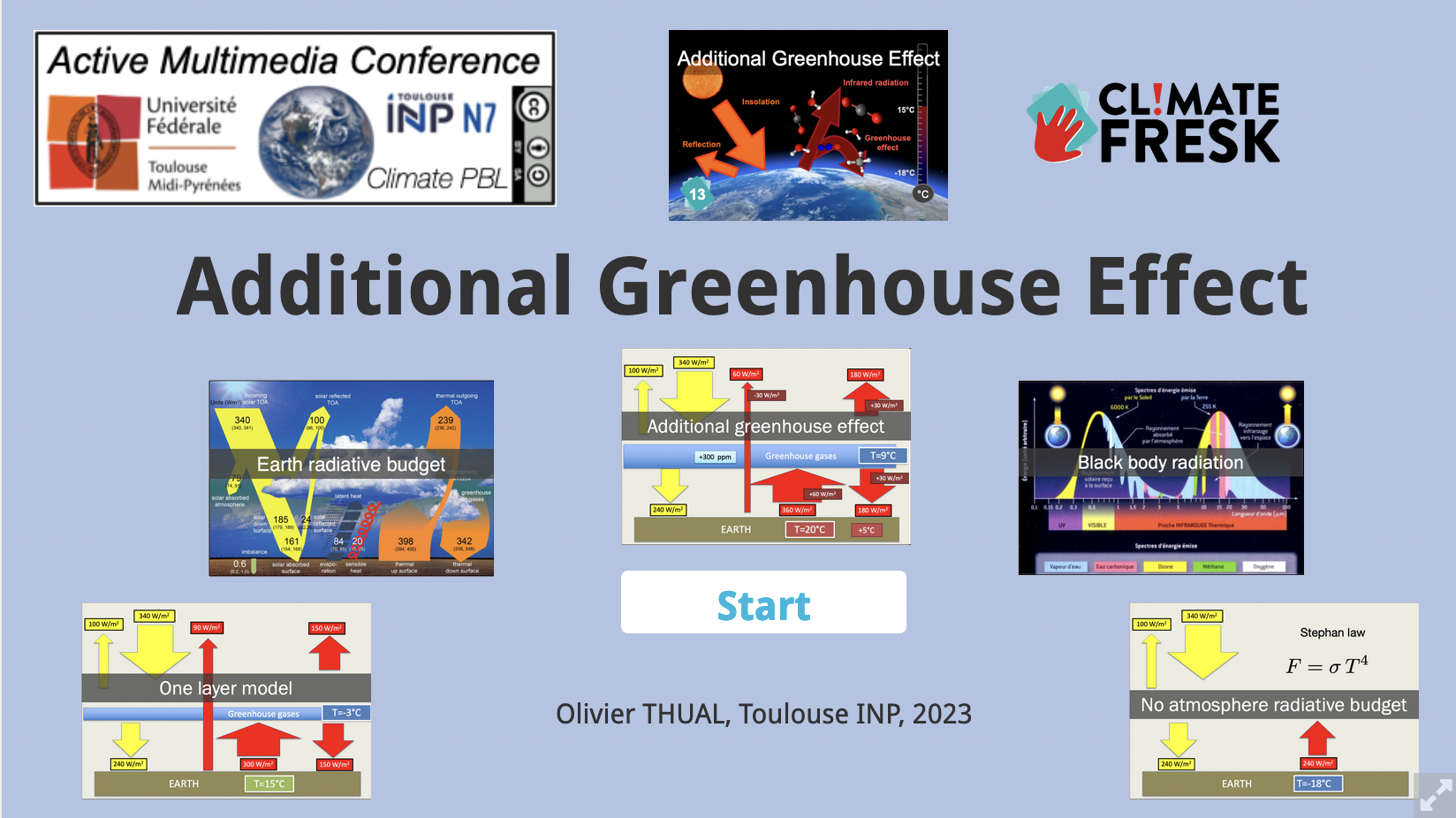
    • The H5P activity in Moodle allows you to insert an .h5p file that can be viewed by clicking on the resource. It is advisable to add after this activity a label containing an image announcing the content of the resource, as below.

    • Title

  • Each group of student has to publish its "Active Multimedia Conferences" and the A6 format pdf of their minifresk cards on a Moodle course in which their will have the writing and managing rights.

    • How to register the students in the Moodle course of their project
      • Each student of the group must connect at least once on https://mooc.inp-toulouse.fr/ with its LDAP login
      • Thank to this first connexion, the teachers can declare at leat on student as a Manager (Gestionnaire) of the its course.
      • This Manager can then declare Manager of the course the other students of the group with Administration du cours/Utilisateurs/Utilisateurs Inscrit/Inscrire des Utilisateurs.
      • NB: if your are only "Teacher" (Enseignant), you cannot register your colleagues. In that cas, please contact the real teachers !
    • How to change the title of the course and manage parmaters
      • Each group must change the title of its Moodle cours by clicking on "Parameters"
      • By Default, the Moodle course is hidden to the work while belonging to the Preprod category.
      • The final version will be published under the authorization of their authors. 
    • The format required for the Active Multimedia Conference (AMC) of the Climate PBL course is that of an H5P interactive slide show, following the template below or creating a format that allows similar features: playing with the minifresk online, interactive questions, link to a remote video, etc.

      Clicking on the "réutiliser" (reuse) button on one of the displays below will download the template that can be easily transformed. When posting the AMC resource in the Moodle course available to groups, ensure that the "Permettre le téléchargement" (Allow download) button is enabled in the "Options H5P" of the resource.

      Caution: make sure that the H5P file does not exceed 20 MB in size  by reducing the weight of the images and externalising the videos.
  • The following methods should be considered for uploading or editing an .h5p file. You can choose among the following methods:

    • Editing of Moodle mooc-inp
    • Install Logiquiz on your computer
    • Install Lumi
    • Create an account on h5p.org or h5p.com
    In any case, be cautious to limit your H5P file to 20 Mo.

    • Uploading and/or editing the H5P file in your Moodle course

      • Activate the edition mode (Activer le mode édition) in your Moodle course.
      • Click on "Add an activity" (Ajouter une activité ou une ressource)
      • Clik on the blue H5P icon
      • Enter the following title: "Click here, and not below, to visualize the presentation!"
      • Click on the "file icon" near "Fichier de paquetage" to upload the H5P template.
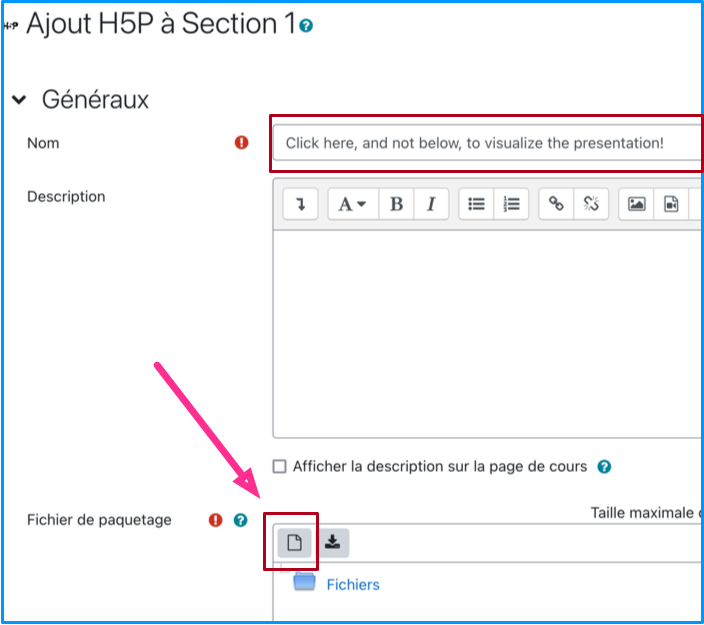

      • Slelect the option "Permettre le téléchargement" : 

      • Your can then edit the H5P file
      • Do not forget to save


      The following procedure does no longer works:

      • Click on the content bank: "banque de contenus"
      • You can then create a new H5P file ( ) or upload one ()
      • It is now time to edit the H5P file ( )
      • Back to the activity, click on and select your H5P file in the bank
      • Do not forget to click on all the options : 
      • You can also post your slideshow as described below (Zone Texte et média)
    • Open source software Logiquiz

      Find in your environnement or install the Logiquiz application: on some systems, you have to use "Command-Right-Click" instead of "Right-Click" on some systems to copy and paste them

    • Open source software Lumi
      Find in your environnement or install on your computer the Lumi application. The "Math Display"  library  must be added once the Lumi application is installed;

    • Account on the H5P file : h5p.org is not longer free, h5P.com is free
      Create an account h5p.org :  files cannot exceed 20 MB: which is the limit  imposed for publishing on this Moodle space anyway. NO LONGER FREE in 2024

      Caution : accounts on h5p.com are only valid for a trial of 30 days.


      NB : Please check that I do not confuse .com and .org !
    • It is possible to display an H5P resource as a label. This enable a direct insight of the first page of the slideshow. But it takes too much time to appear and the above method should be preferred : a link followed by an image.